

Triggers
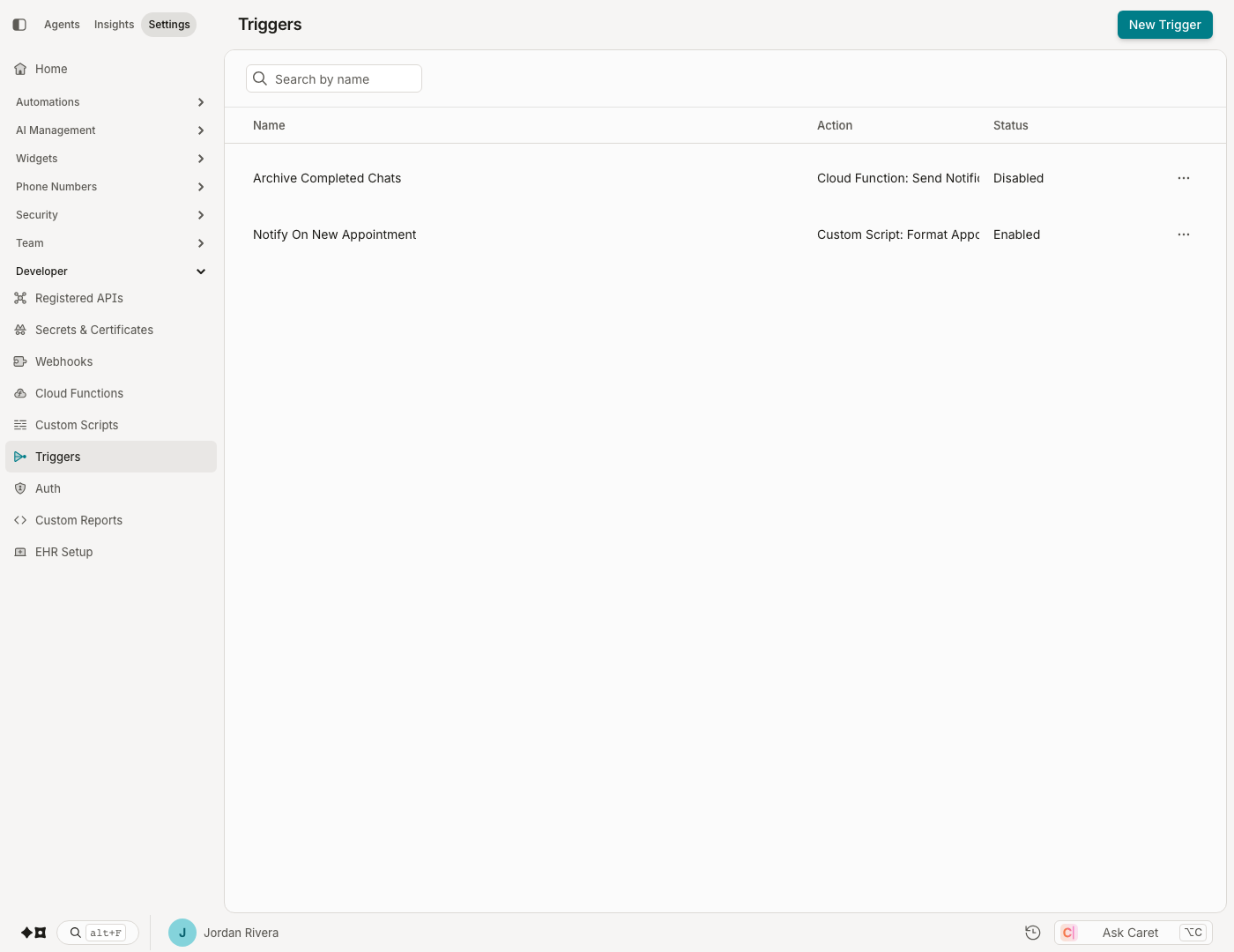
Triggers run an action inside the platform when events occur — where Webhooks push events out to your systems, a trigger reacts in place, without you hosting an endpoint. Each trigger subscribes to the same event categories as webhooks and fires exactly one action:
- Custom Script — runs one of your organization's custom scripts, passing the event payload as the script's
Eventinput. - Cloud Function — invokes one of your cloud functions, delivering the event to your endpoint.
Not to be confused with analyzer triggersAnalyzer configurations (under Admin › Automations › Analyzers) have their own "trigger" — the condition that runs an analyzer against a conversation. That is a separate concept from the Developer Triggers described here.
Creating a trigger
At Admin › Developer › Triggers, click New Trigger:
- Name the trigger and choose whether it starts Enabled (new triggers default to disabled — "When disabled, this trigger will not execute when events occur").
- Pick the Action Type (Custom Script or Cloud Function) and select the specific script or function.
- Click Create.
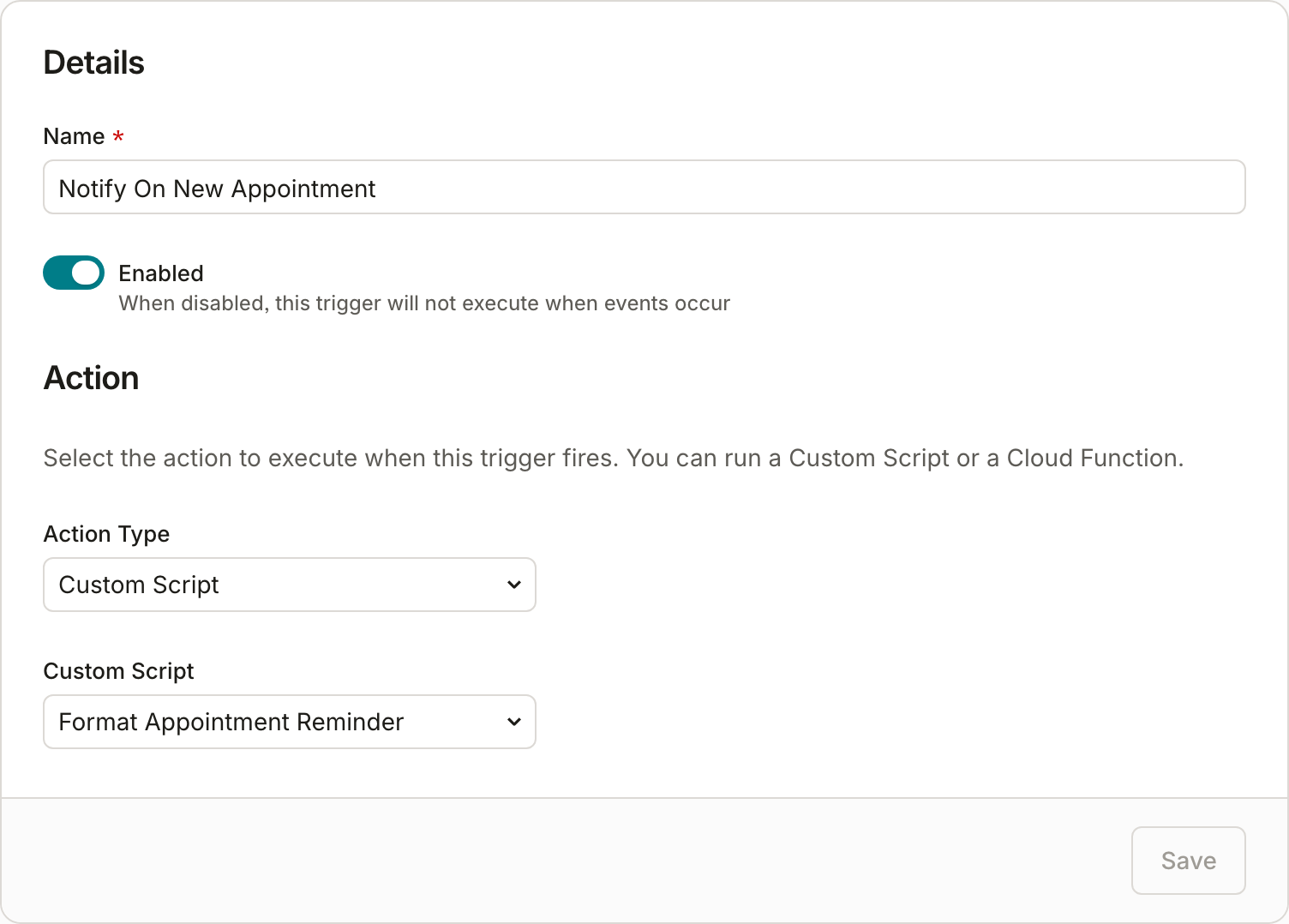
Event subscriptions are added after creation — once the trigger exists, the Event Subscriptions section appears. Click Add event to subscribe to an event category, then optionally build filters within each category: conditions of the form property / operator / value (operators are matches and does not match), combined with AND/OR and up to grouped condition sets. Filterable properties vary by category — Event Type, Widget, Topic, Phone Number, Tag, Category. Click Save on the section to apply.
The subscribable event categories and their payloads are the same as for webhooks — see Webhook Management for the full catalog. A filter row without a property or value selected is dropped when you save.
Monitoring executions
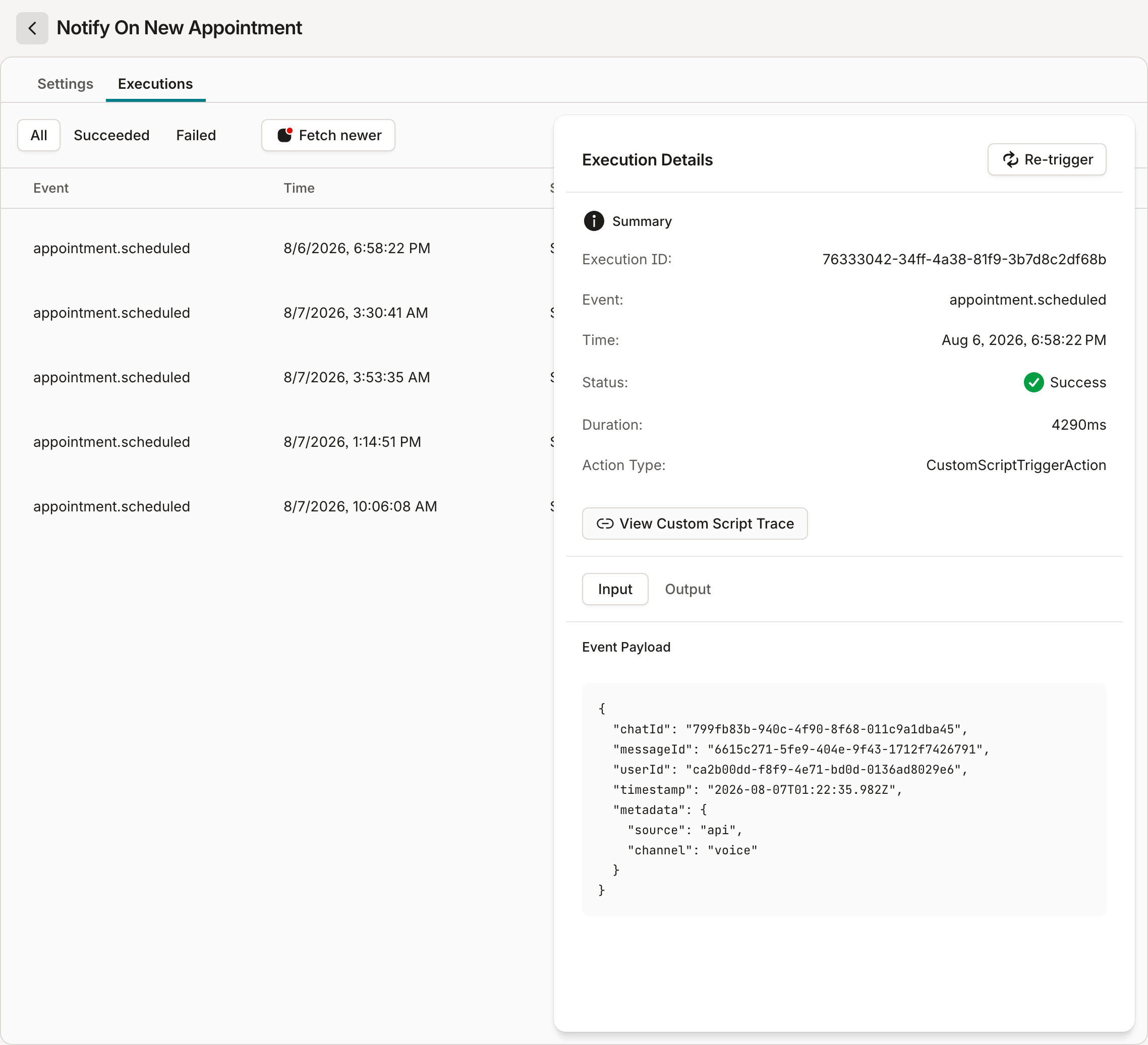
The trigger's Executions tab lists every run, newest first, filterable by All / Succeeded / Failed (use Fetch newer to pull in runs that happened while you're looking). Each row shows the event type, time, status, and duration; View Details opens the full record with the incoming Event Payload and the action's Result.
For cloud function actions, check the Result in the execution details for the function's own outcome — it reflects what your endpoint returned, which is the authoritative success signal for the function itself.
Re-trigger replays a past execution using its original stored event payload — the only way to fire a trigger manually, and handy after fixing the script or endpoint the trigger targets.
Managing triggers
- The Enabled toggle pauses a trigger without deleting it.
- Updates use optimistic concurrency — if someone else edited the trigger since you loaded it, your save is rejected; reload and retry.
- Delete stops all executions for the trigger and cannot be undone.
Updated about 2 months ago