

Datasets
Datasets are client-provided tables of data stored in Elegant Machine that your automations can consult at execution time — lookup tables, program rosters, facility directories, and the like.
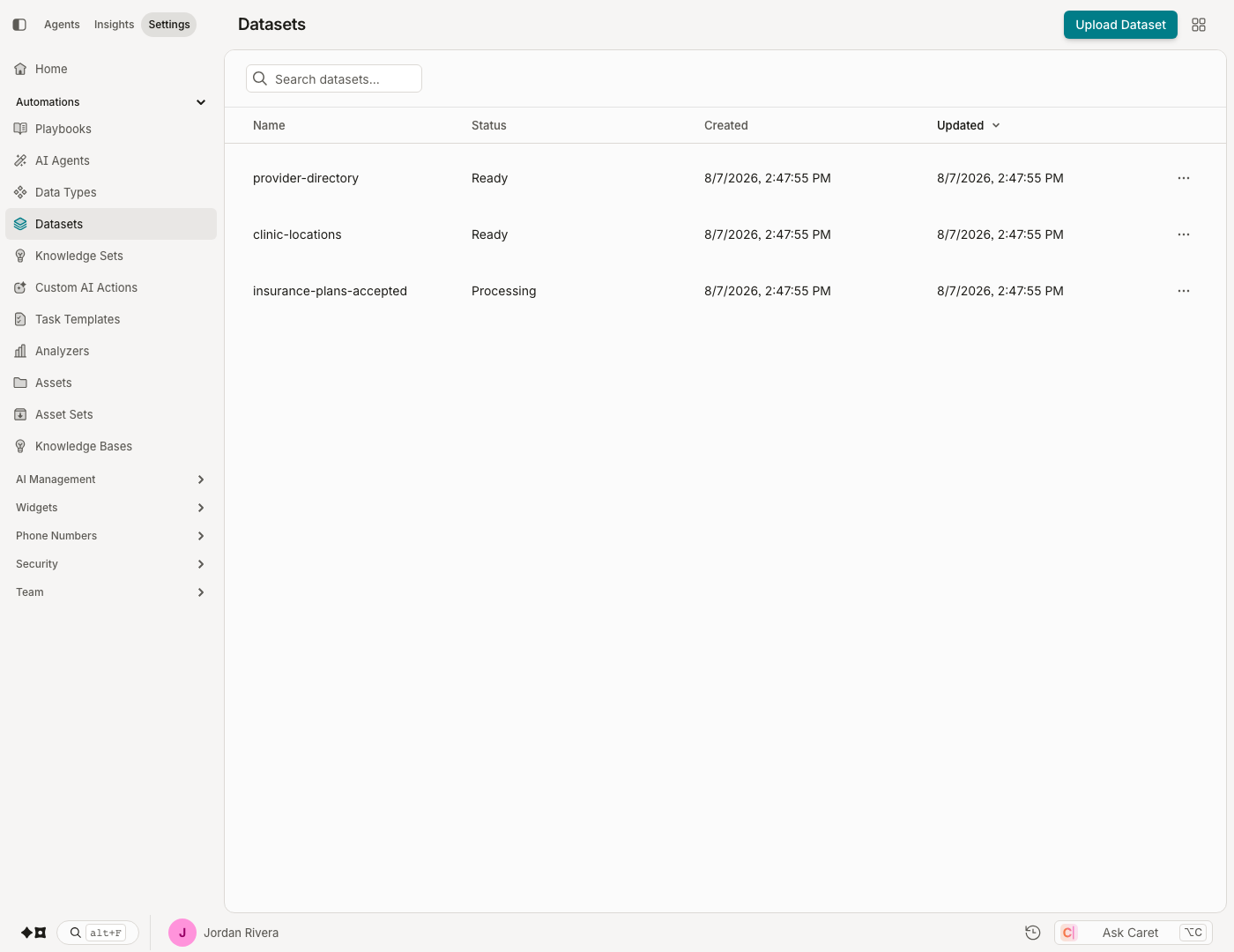
Creating a Dataset
A dataset is created by uploading a .csv file on the Admin › Automations › Datasets screen:
- Navigate to Admin › Automations › Datasets.
- Click Upload Dataset.
- Select a .csv file with the desired data using the file browser.
- Click Open.
The new dataset will display in the grid with a status of "Processing" until it has finished being created.
By default the name of the file is used as the name of the dataset, but it can be renamed after the initial upload.
File Size LimitationThe maximum allowable file size for uploading a dataset is 30 megabytes.
Updating a Dataset
An existing dataset can be updated by uploading a new version of the .csv for the given dataset:
- Click on the dataset in the table to navigate to a view of its records.
- Click Update data set.
- Select a .csv file with the desired data using the file browser.
- Click Open.
The dataset will display with a status of "Processing" until the update completes.
Dataset Requirements
When creating a new dataset or updating an existing one, the following requirements must be met:
- Dataset name may contain only alphanumeric characters, spaces, dashes, and underscores.
- Dataset name must be unique for the organization.
- Column names may only contain alphanumeric characters and underscores.
- File extension must be ".csv".
- File must be readable as a CSV file.
- The first line of the file should contain column headings.
- File size must not be greater than 30MB.
Updated about 2 months ago